 Make Flying With FS More Exciting
The Flight Data Recorder (Black Box) or Flight Analyzer makes flying more fun. After your landing you still have fun from the flight when you look at the results.
On this page:
What This FS Utility Does
- Quickly change MSFS/P3D/FSX/FS2004 settings — time, date, fuel, weight, traffic and more.
- Set time and/or date to system time with one click.
- One click for full fuel tanks.
- Easily and quickly change the payload.
- Adjust traffic when it's too high or too low.
- Start a random failure system with one click — gear, flaps, engine, fuel leak, and more.
- Freeze time to fly in an everlasting sunset.
- Runway detecting system to see which runways are in use.
- Built-in Flight Data Recorder (Black Box) — see Flight Analyzer below.
- Flight report delivered in PDF format when analysis is finished.
- Reports are automatically saved to the logbook.
- Auto-pause FS when within a set distance from destination (1–900 NM). Also pauses on overspeed or stall.
- Load a flight or a flight plan.
- Create a new flight plan in seconds.
- Reload a flight or flight plan with one click.
- See Graphics, Aircraft, Scenery, Weather and Traffic settings on one screen and change them.
- Flight automatically saved as 'FsQC last Flight' with Airport ICAO, City and Country — e.g.
FsQC last Flight -LFPO- Paris, France.FLT
Flight Analyzer
The Flight Analyzer (Flight Data Recorder) starts monitoring from the moment you begin taxiing. It gives you detailed information such as:
- Takeoff and landing weight
- Takeoff roll in meters and feet
- Separate fuel consumption for taxi, climb, cruise and descent
- Fuel remaining and remaining flight time after landing
- Maximum banking in flight
- Speed at which you use flaps and gear
- When you engage or disengage the autopilot
- Vertical speed at touchdown
- Reverser set after landing
- Speed at which you cancel reverse thrust
- Bouncing at landing
- A flight report is generated and automatically saved after landing
- …and much more — see the example PDF report.
After landing you can evaluate your flight performance with the flight report.
Landing Analysis
Forget the built-in P3D, FSX & FS2004 “Flight Analysis”. With FsQC landing analysis you see what really happens during your landing. The landing chart shows how your plane behaves from 3 NM before the runway until touchdown, including:
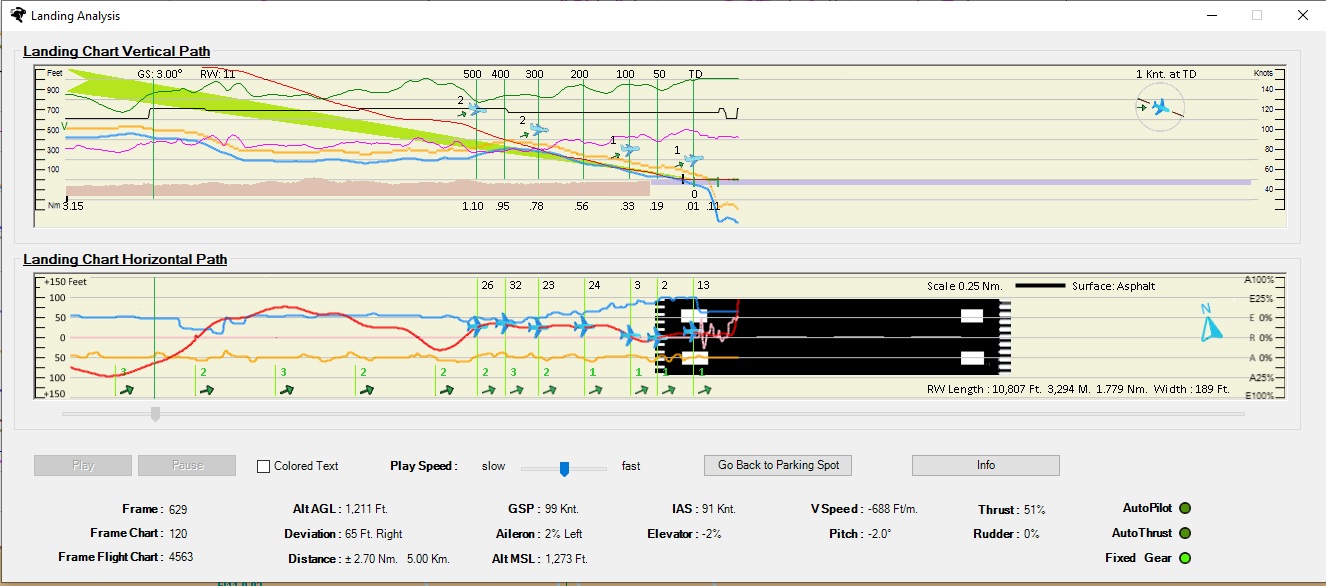
- Power settings
- Speed
- Pitch
- Vertical speed
- Altitude
- Callout heights
- Decision height
- Wind at aircraft
- Distance to touchdown
- Glideslope
- Terrain height
- Idle set
- Autopilot on/off
- Autospeed on/off
- Reverse thrust
- Landing roll
- Deviation from centerline
- Elevator, aileron and rudder inputs
Flight Chart
From version v6.19 you can evaluate your flight as never before — the entire flight in a graphical Flight Chart. Includes:
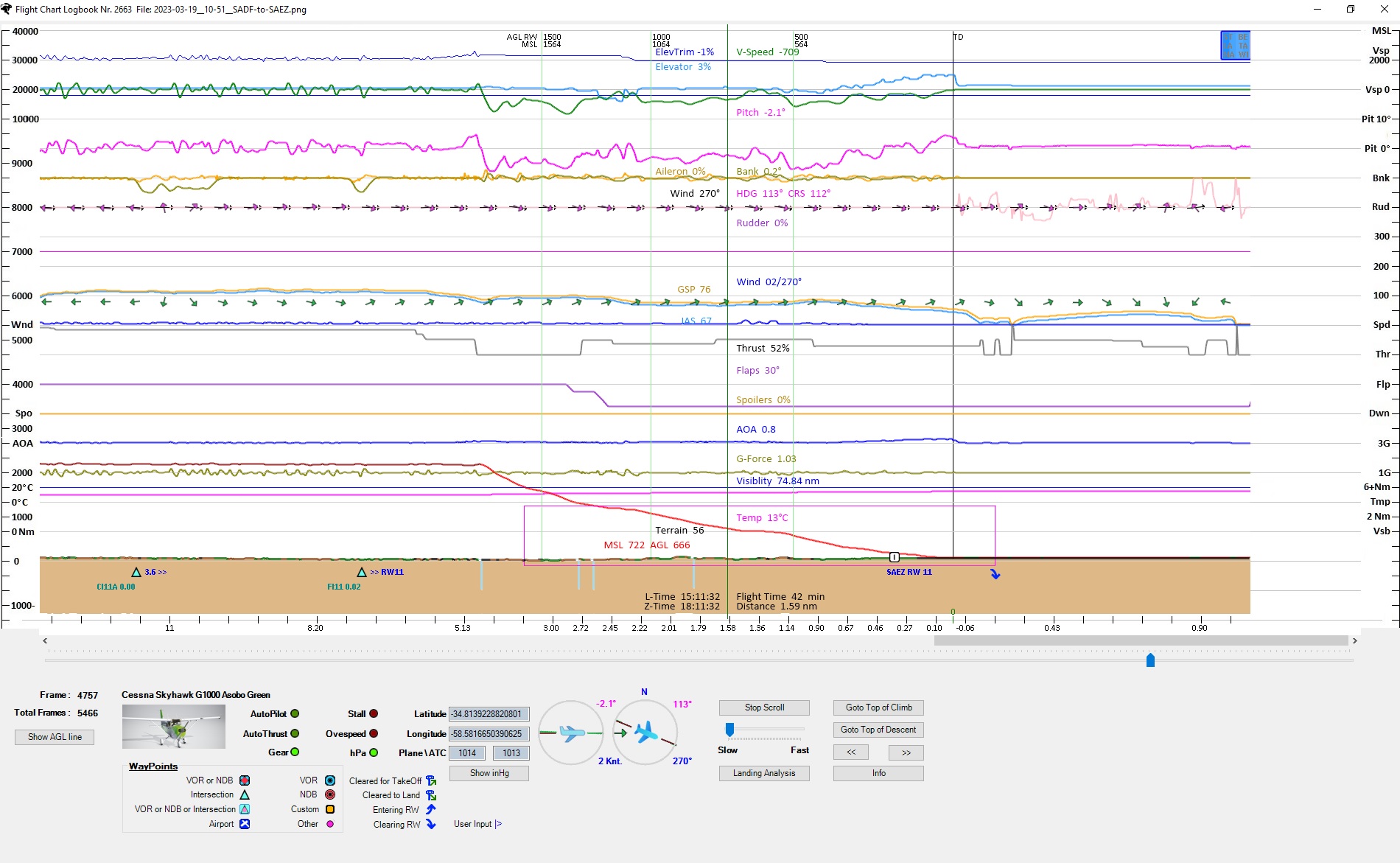
- Power settings, fuel flow, fuel burn
- Speed, pitch, vertical speed
- Elevator, elevator trim, bank, aileron, rudder
- Course, altitude
- Gear, flaps, spoiler
- AOA, G-force
- Wind at aircraft, distance to airport, terrain height
- Autopilot on/off, autospeed on/off
- Overspeed, stall, 250 kt speed limit
- Waypoints
Pilot Logbook
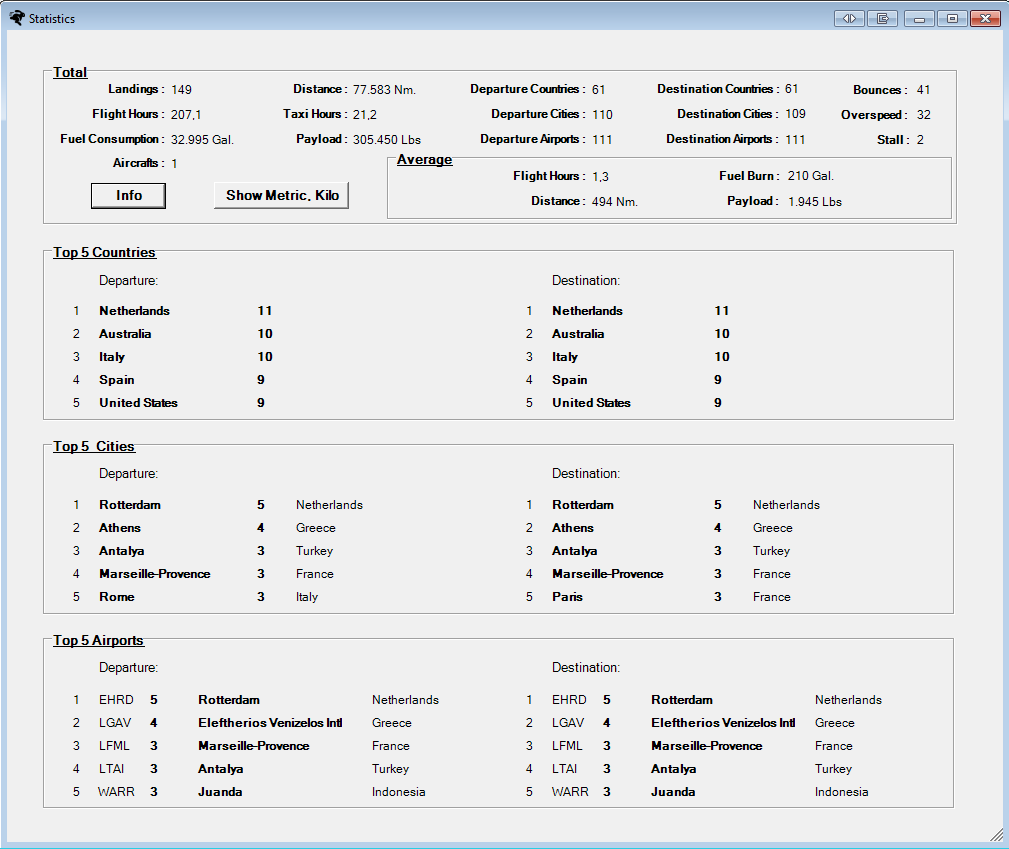
This logbook records every flight when landed and parked. In the Statistics window you'll find the Top 5 visited countries, cities and airports. It counts all landings, total fuel burn, total payload, unique departure/destination airports, total flight and taxi hours, total distance travelled, and more.
For each successful flight a record is stored with:
- Flight number, aircraft
- Departure & destination ICAO / city
- Distance, fuel burn, flight time
- Landing roll and landing speed
- Vertical speed at touchdown, G-force
- Landing runway, deviation from centerline
- Departure and arrival time, date
- Detailed wind information at touchdown
- Flight report file (double-click to open)
- Remaining fuel and time
- Bouncing, stall, overspeed
- Payload and statistics
Flight Planner
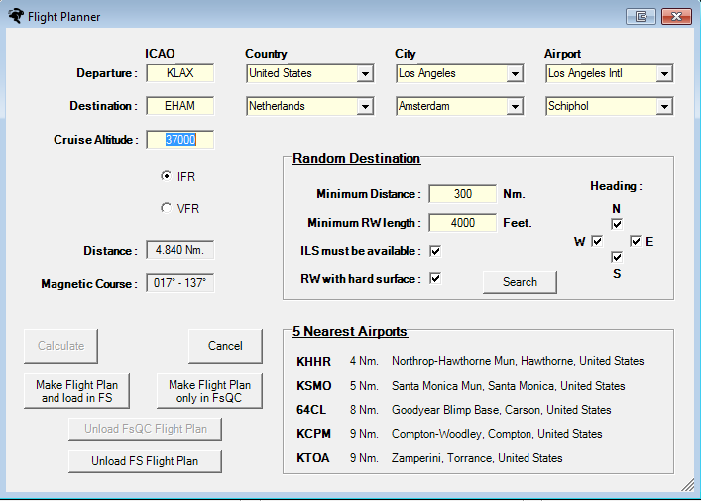
Very handy when you use your favourite flight planner. Just fill in:
- ICAO departure (already filled in by FsQC)
- ICAO destination
- Cruise altitude
The flight planner calculates cruise altitude, distance and magnetic course. Cruise altitude is calculated according to US flight rules — you can of course change it.
The random flight planner needs only:
- Distance
- ILS available or not
- Minimum runway length
- Runway surface (hard or not)
- Direction of flight (N, W, S, E)
After clicking Search, a window pops up with all airport information. You can pick it as destination or search again. You also see the 5 nearest airports to your aircraft — click the ICAO for details. See the Flight Planner screenshot.
Failure System
The failure system is random: it calculates the type of failure and when it will occur. After the first failure it calculates a new one, and so on. You can set 1–10 failures and an interval between 1 and 1200 minutes. Failure types:
- Heading indicator
- Attitude indicator
- Altitude indicator
- Vertical speed indicator
- Airspeed indicator
- Pitot
- Flaps
- Engine failure (up to 4 engines, one at a time)
- Fuel leak (left, center or right tank — one at a time)
- Gear failure (nose, left or right — can be made to work again by manoeuvring, e.g. try a touch-and-go for the nose wheel)
GPS Logger
FsQC includes a built-in GPS logger with waypoints. After the flight you can view your route in Google Earth.
- Turn the option on or off — see the user guide.
- Choose 1 or 3 tracks.
- After the flight the log file appears in the
Flight Reports / GPXfolder. - Load the file in Google Earth — see the short video.
- Tracks appear in Google Earth's temporary folder.
- Waypoints are recorded too — autopilot on/off, flaps, landing gear up/down, etc.
CFG Settings
- View all your cfg settings on one screen: Graphics, Aircraft, Scenery, Weather and Traffic.
- Save different setting files.
- Load a cfg file for a certain scenery before the sim is loaded.
- This feature is only available for FSX.
Limited Working
FsQC is limited in trial mode: you can only fly within 180 NM of Iraklion (LGIR) and 180 NM of Athens (LGAV), Greece. That way you can test FsQC thoroughly before deciding to activate it — after activation you can fly wherever you want. When outside the limits the program warns you with a message.
Activation
When activated, the program runs only on the computer where it was activated. You can easily move it to another computer, up to 10 times — so buying a new PC is no problem. After activation, all future updates are free of charge.
Reset Activation
If you run FsQC on another computer you'll get a message that it can only run on one computer. Then simply reset the activation: go to the activation menu, reset with your email and license key, and follow the instructions — done within a minute.
Recommended
For easier use, run FsQC on another monitor. Best practice is to run FsQC on a second PC or laptop with FSUIPC WideClient on the same network as P3D/FSX/FS2004. This requires registered FSUIPC WideFS.
Requirements
Windows 7 or higher with internet access, and a flight simulator: MSFS 2024, MSFS 2020, P3D, FSX or FS2004 with FSUIPC installed. You can download FSUIPC free from the internet. If you run FsQC on a network computer (not the one running FS), you need registered WideFS in FSUIPC.